
Fortnite Cheat Not Working After a Patch: A Troubleshooting Order
A dead cheat after a patch is usually not a dead cheat. This is the ordered check: what to rule out on your own, what a patch actually breaks, and when the answer is waiting for an update.
A cheat that worked last night and does nothing tonight feels like a refund. Usually it is one of six things, and five of them are on your end.
Work through this in order. It is arranged so the cheap checks come before the expensive ones, and so you rule out your own setup before blaming the build.
First: was there a patch?
Check the Fortnite version in the launcher against what it was yesterday. If Epic pushed an update, the cheat may simply not be rebuilt for the new build yet.
That is normal and it is not a fault. Fortnite loads Easy Anti-Cheat, and offsets shift with every patch, which is why compatibility updates follow game updates rather than the reverse. Subscribers get those updates at no extra cost, and the useful move is to wait rather than to reinstall repeatedly.
If there was no patch, keep going.
Check 1: display mode
Is Fortnite in fullscreen exclusive? Overlays draw over borderless windowed and often fail over exclusive fullscreen. The menu can be running, attached, and simply invisible.
Set the display mode to borderless windowed in the game's video settings and try again. This single setting accounts for more "broken" reports than anything else.
Check 2: rendering mode
Is the game on Performance Mode? Performance Mode strips the render pipeline down and is the usual reason ESP draws nothing while the menu itself appears.
Switch to DirectX 12 in the same settings panel. If the menu was already missing entirely, this can be the difference between a blank screen and a working overlay.
Check 3: Hyper-V still enabled?
Open Turn Windows features on or off and confirm Hyper-V and the Hyper-V Platform entry are still ticked. Windows feature updates, driver installers and some anti-cheat updates will quietly turn it off.
If it is off, re-enable it, reboot, and re-run the Cloud DMA activation before launching anything. A half enabled environment produces symptoms that look exactly like a dead cheat.
Check 4: HVCI, Core Isolation, TPM, Secure Boot
All four have to be on. Confirm them in System Information and in Windows Security, Device security, Core isolation details.
If you recently installed a driver that broke Memory integrity, Windows may have reverted HVCI and left a notification. Turn it back on, reboot, and check that it stuck before going further.
Check 5: another overlay is fighting
Close RTSS, MSI Afterburner, the Discord overlay, the Xbox Game Bar and any capture software except what you are actively testing with. They all compete for the same draw layer and can leave the menu invisible even with everything else correct.
Retest with only the game and the loader running. Once it works, add your overlays back one at a time to find the culprit.
Check 6: launch order and admin rights
The order is game first, then loader, both as administrator. If you ran the loader before the lobby, it attached to nothing.
Close both, confirm Hyper-V is still enabled, and repeat cleanly once. Two attempts is the useful limit; beyond that you are guessing.
What is not a fault
Some things get reported as bugs but are settings:
- ESP showing nothing on bots. Check whether your filters exclude them.
- ESP showing teammates. Team colour and the show team toggle are separate controls.
- Aimbot snapping to the wrong bone. The hitbox selector is set to chest or pelvis rather than head.
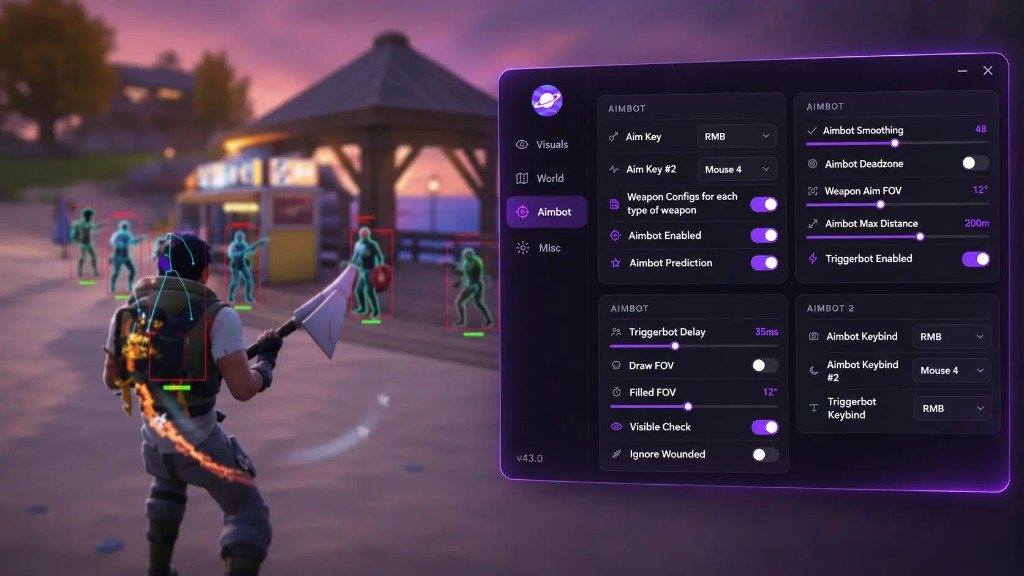
- Aimbot grabbing walls in build fights. FOV is too wide. Drop it to 3 to 6 degrees and raise smoothing.
- Triggerbot firing late. Triggerbot delay is up. Bring it down in steps.
- Everything looks cluttered. Item ESP is on for every rarity and radar render distance is uncapped.
None of these need support. They need two minutes in the menu.
When it is genuinely broken
Open a ticket if all six checks pass and you still get nothing. Include:
- Windows edition and build number
- Whether Fortnite patched recently, and the version string
- The exact step you reached and what appeared, or did not
- Your display mode and rendering mode
- What you have already ruled out from this list
Those five lines cut a support thread down to one or two replies. A screenshot of the loader window with any error text visible is worth more than a paragraph describing it.
Reducing the chance of this next time
A few habits cut repeat failures:
- Save a known good config and do not overwrite it. Two configs, one for builds and one for Zero Build, both saved under clear names.
- Change one setting at a time. A batch of changes makes the cause of a new failure impossible to isolate.
- Do not update GPU drivers mid session. Reboot after driver installs and re-check HVCI before playing.
- Keep the loader folder excluded from real time scanning, so it is not quarantined quietly during an update.
The version that always works
There is no configuration that survives every patch, because the game changes underneath it. What you can control is how fast you notice, how cleanly you report it, and whether your settings are recoverable.
If you are starting fresh rather than fixing an old install, the Fortnite cheat page lists the current feature set and requirements, and the setup walkthrough covers the order that prevents most of these failures in the first place.